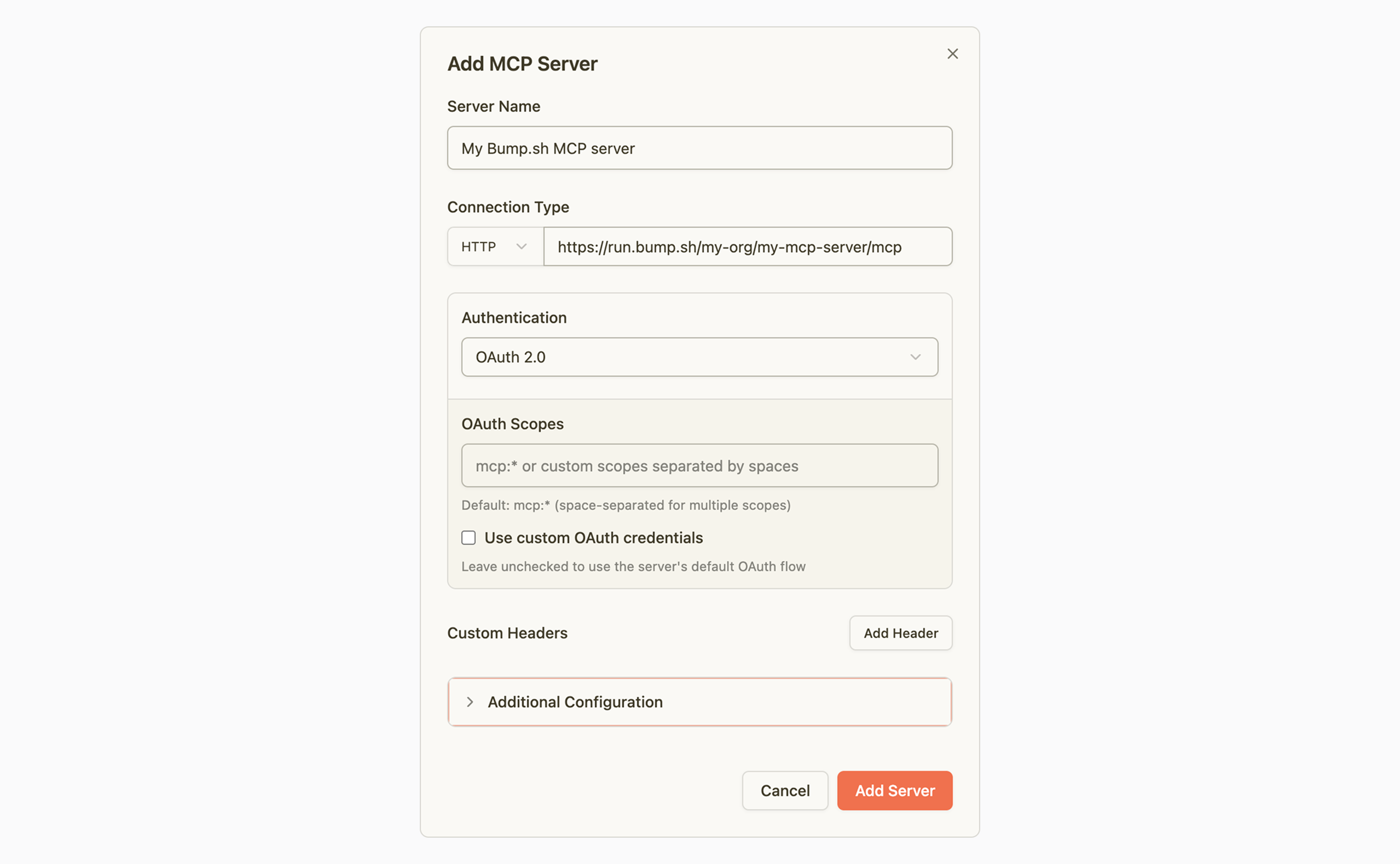
Use an MCP server
To use an MCP server, the most common way is to add it to your IDE or AI tool. Some offer “one-click” addition, while others require a bit of configuration. If your tool is not listed, have a look at their documentation: MCP server integration might be supported.
If your Bump.sh MCP server is private, don’t forget to select OAuth as the authentication type while adding the server to your tool.
ChatGPT #
To add an MCP server to ChatGPT, go to Settings -> Apps -> Advanced settings -> Create app, and fill the MCP server URL field.
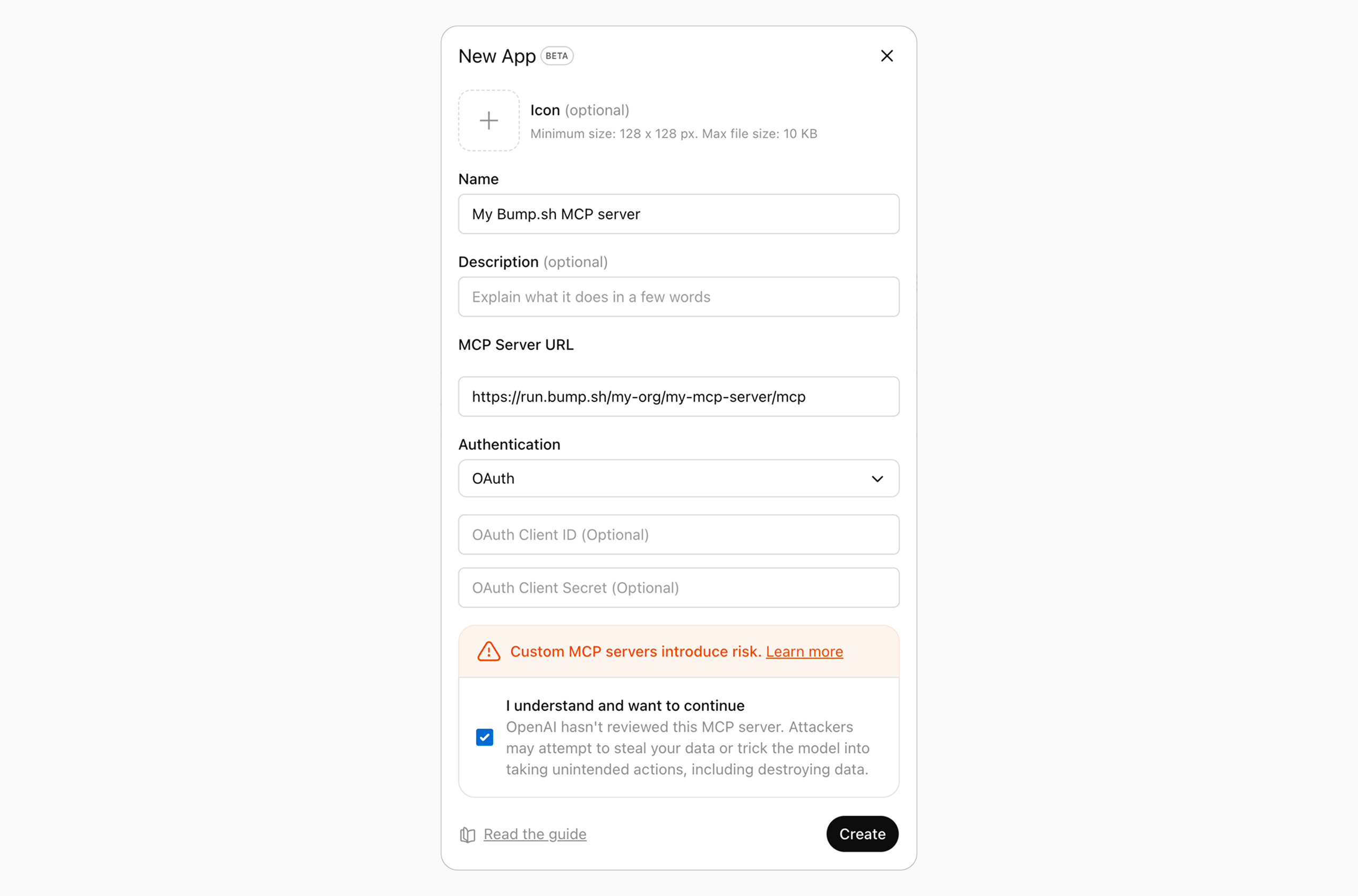
For now, adding custom Apps is only available in ChatGPT paid plans.
Claude #
To add an MCP server to Claude (Desktop or web), go to Settings -> Connectors -> Add custom connector, and fill the URL field.
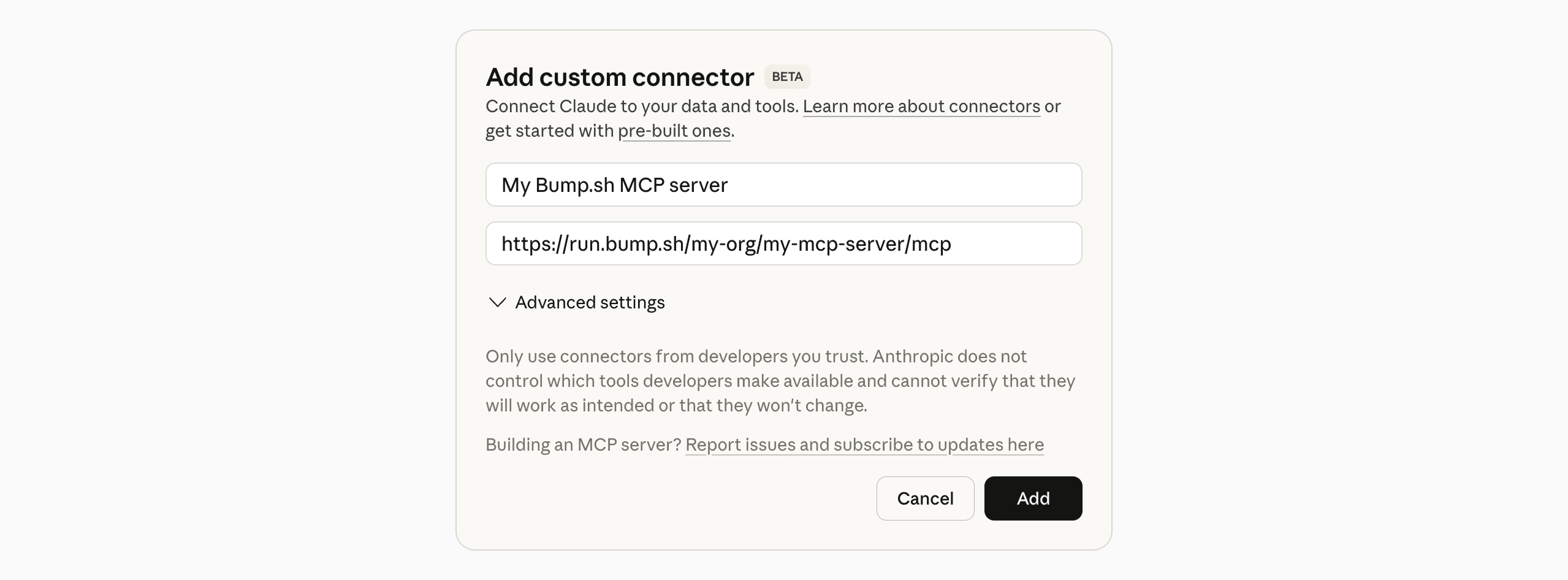
For now, adding custom connectors is only available in Claude paid plans.
Cursor #
To add an MCP server to Cursor, go to Cursor Settings -> Tools & MCP -> New MCP server. It will open the mcp.json file, that you need to fill as below:
{
  "mcpServers": {
    "My Bump.sh MCP server": {
      "url": "https://run.bump.sh/my-org/my-mcp-server/mcp"
    }
  }
}
MCPJam (debug tool) #
MCPJam is a great tool to debug your workflows. It allows you to interact with the MCP server and analyze the requests sent by the LLM to the MCP server. To add an MCP server to MCPJam, click on “Add Server”, and fill the “Connection Type” URL field.